 Drachma
How to budget from your bank statement
Get Drachma free No bank login. Your statement never leaves your phone.
Download your card or bank statement as a file from your bank’s app, take out the lines that aren’t spending (payments, refunds, reward points), sort what’s left into a few groups, and compare the totals with your plan. That’s a budget built from what really happened, and you never have to give an app your banking password. Here’s each step, and how a budget app can do the sorting for you on your phone.
Card statement or account statement?
They’re different documents and show different things:
- A credit card statement lists what you bought with the card in one period, any installments, rewards you earned, and what you owe for that period.
- A bank account statement (current or checking account) shows everything that came in and went out: salary, rent, transfers, bills, and the day you paid your card.
Read together, they show the whole month. Your pay lands in the account, the card bill is paid from the account, and the detail of your spending sits on the card. Watch one trap when you combine them: the “card payment” line on the account statement is the total of purchases you already see on the card. Count it again and the same money looks spent twice.
Where to get your statement file
Most banks let you download statements from their app or online banking, usually under a Statements or Documents section of the account or card. Many also email a monthly e-statement if you switch it on. Menu names differ by bank and change over time, so your bank’s own help pages have the current path.
| Format | Works for budgeting? |
|---|---|
| PDF whose text you can select | Yes. This is what most banks give you. |
| Excel (XLS, XLSX) download | Yes. Some banks offer it for account transactions. |
| Password-protected PDF | Yes, once you enter the password your bank set. |
| Scanned PDF | Usually, through text recognition on your phone. A PDF straight from your bank reads cleanest. |
In Türkiye or Brazil? There are country guides with each bank’s download path: Ekstre nasıl alınır and Como baixar a fatura e o extrato.
How to read your statement
On a credit card statement
- Closing date and payment due date. Purchases up to the closing date are on this statement; later ones roll to the next. The due date is the last day to pay.
- Statement balance. What you owe for the period: purchases, installments due this month and anything carried over.
- Minimum payment. The least you can pay to stay current. Pay only this and the rest carries over with interest.
- Installments. In countries where cards split purchases into monthly parts, such as Türkiye and Brazil, a line shows something like 2/6: the second of six payments. Those are amounts the coming months already owe.
- Rewards, payments and refunds. Points earned, last month’s payment and refunds appear as credits. None of them is spending.
On a bank account statement
- Money out (debits): spending, bills, rent, the card payment.
- Money in (credits): salary, transfers received, refunds.
- Balance: what’s left after each line. Compare the first and last balance to see whether the month ended up or down.
A five-minute monthly routine: 1) Note the statement balance and due date. 2) List the installment lines and total them. 3) Strike out payments, refunds and reward rows. 4) Sort what’s left into a few groups: groceries, eating out, transport, subscriptions. 5) On the account statement, find your pay and the card payment, and don’t count the card payment twice.
Compare each group with what you planned, and set next month’s numbers from what really happened, minus the installments that are already committed. Doing this by hand works. With a couple of cards and an account, it takes a while every month.
Let an app do the sorting
Drachma reads the same file for you and sorts the rows. All of it happens on your phone: the file is never uploaded, and you don’t link your bank or create an account.
- Save your statement from your bank’s app or an e-statement email as a PDF or Excel file.
- Import. In Drachma tap + and choose “Import from a file”, or share the file to Drachma from your email or files app.
- Check and save. You see every row in a list and fix or skip anything before it’s saved.
Sample view: row labels are the app’s own, merchants and amounts are made up.
What Drachma does for you
- Fills in categories. Shops you’ve logged before arrive with their category. Change one with a tap, and that shop’s later rows follow your choice.
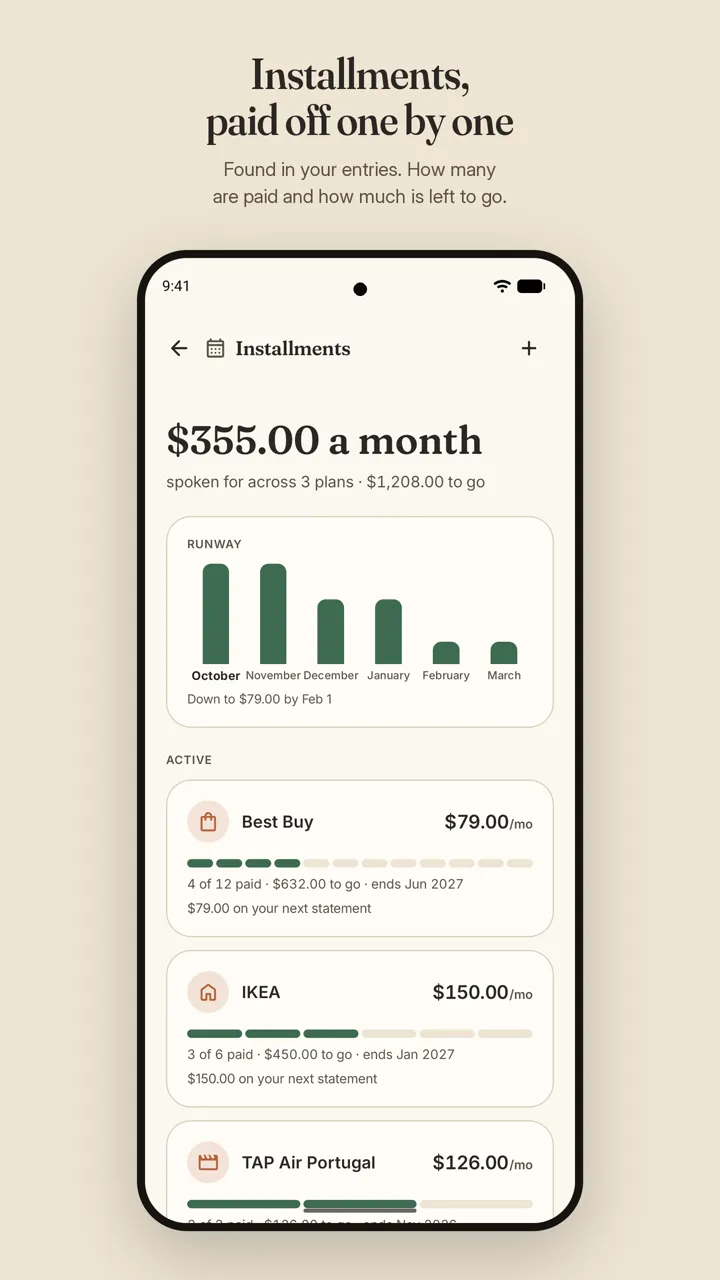
- Finds installments. Rows like “2/6” are recognised and gathered under Installments. More in how to keep track of installment plans.
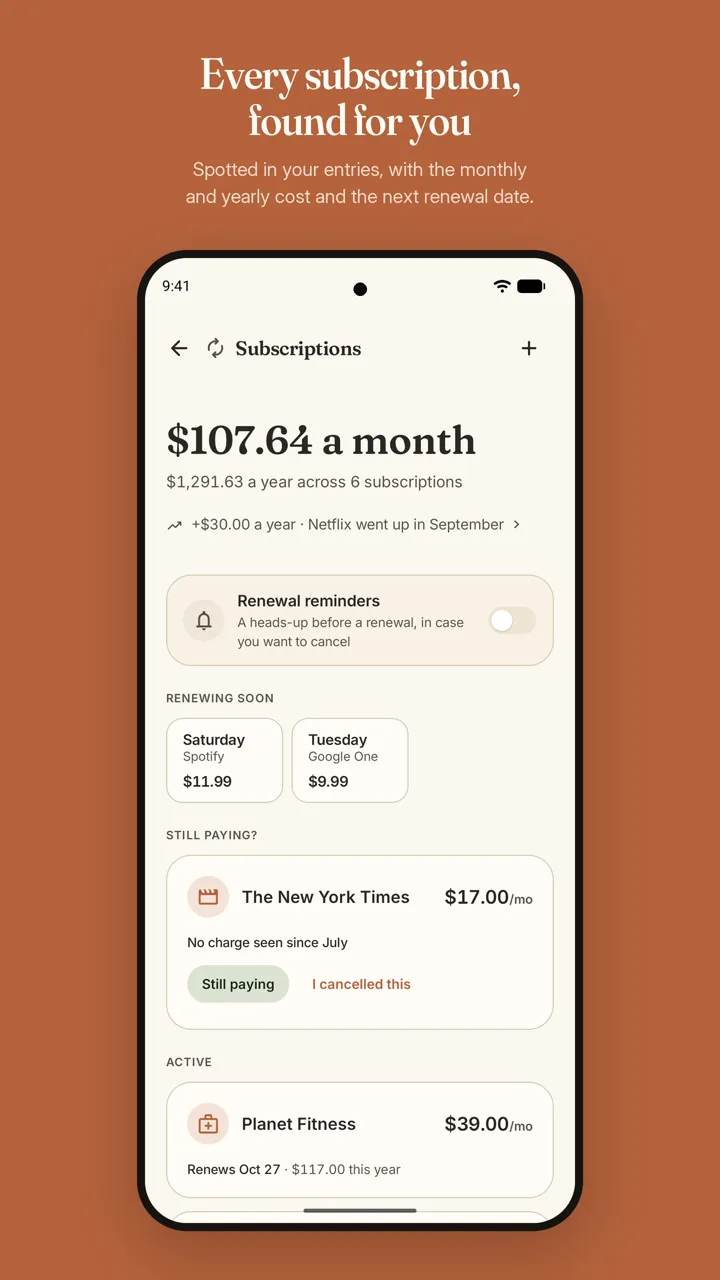
- Finds subscriptions. Charges that repeat show up under Subscriptions. To catch the ones you forgot, see how to find every subscription you pay for.
- Leaves out points and card payments. Reward rows and the card payment aren’t counted as spending, and points never turn into amounts.
- Leaves out the card bill payment. On an account statement, the line where you pay your card bill is left out so its purchases aren’t double counted, even when you import both statements. Income and spending are split by the money-in and money-out columns.
- Opens locked PDFs. If your statement has a password, Drachma shows “This file is locked. Enter its password to read it.” and opens it on your phone once you do.
Which banks has it been tested with?
Drachma doesn’t depend on one bank’s layout; it finds the date, description and amount columns by their headers.
| Country | Tested statements |
|---|---|
| Türkiye | Garanti BBVA, İş Bankası, Ziraat Bankası and Enpara credit card statements; İş Bankası and Ziraat Bankası account statements. Also reads Akbank Axess statements. |
| Brazil | Nubank, Itaú, Bradesco and Caixa card bills; Santander and Agibank current accounts. |
| Netherlands | ABN AMRO current account. |
| Germany | Sparkasse current account. |
| France | Société Générale current account. |
From any other bank, a text PDF or an Excel download usually works too. If yours doesn’t read, write to [email protected] and we’ll look at it together.
Questions
Do I have to link my bank to import a statement?
No. With Drachma you download the statement from your bank’s app yourself, and Drachma reads that file on your phone. It never connects to your bank or asks for your banking password.
Which statement files work?
PDF statements from your bank whose text you can select. Excel (XLS, XLSX) downloads read too. Password-locked PDFs open too. Scanned PDFs are read on your phone with text recognition too; a PDF straight from your bank gives the cleanest result.
Is my bank supported?
Drachma has been tested with statements from banks in Türkiye, Brazil, the Netherlands, Germany and France (the table above lists them). From any other bank, a text PDF or an Excel download usually works too, because Drachma reads the columns rather than one fixed layout. If yours doesn’t read, write to [email protected].
Is it free?
Yes. The Free plan includes 30 receipt scans and 5 statement imports in total, and logging by hand is always unlimited. Plus gives you unlimited receipt scans and statement imports. Backup and export stay free.
Where does my data go?
Your statement and the money data in it stay on your phone. The file is read on the device, never uploaded, and you don’t need an account. Crash reports and anonymous usage counts are optional; amounts, merchant names and statement content never go into them, and you can switch both off in Settings. Details are in the privacy policy.
Import this month’s statement
Download your statement, tap “Import from a file”, and see where the money went. No bank login, and the file never leaves your phone. The Free plan includes 30 receipt scans and 5 statement imports in total.

Drachma is an independent app and isn’t affiliated with any bank named here. See how statement import works.